Read WhatsApp voice messages as text and dictate replies
2026-09-21 · 7 min de leitura · E. Ribeiro
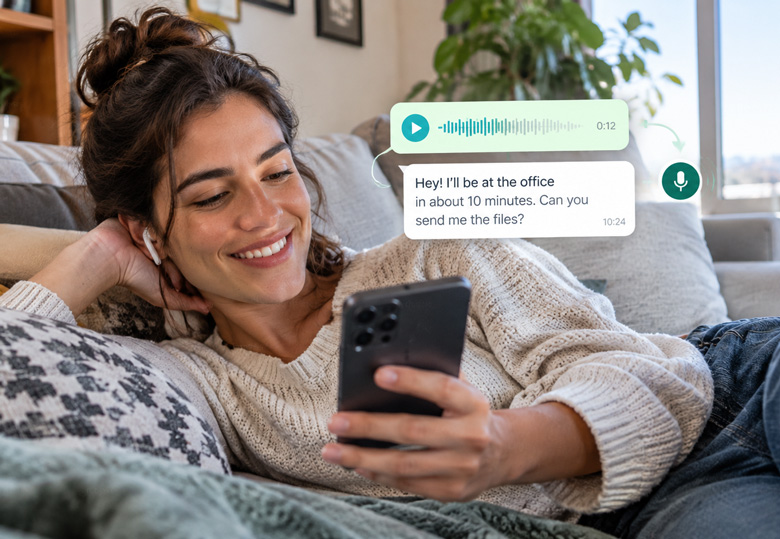
You're on the bus, in the middle of a meeting, or you just want some quiet, and a four-minute voice message arrives. Before you go hunting for headphones, you can simply read it. WhatsApp has been turning voice into text in both directions: you can already read the voice messages you receive, and it's paving the way for the reverse, dictating what you want to send instead of typing it.
In this guide, we separate what already works from what's still in development. That distinction matters, because one feature is rolling out gradually and the other hasn't even reached testers yet. Saying both are ready would be misleading.
Why so many people want to read voice messages instead of listening
Voice has become the format many people prefer for explaining something in detail. It's convenient for the sender and not always convenient for the receiver. In work, family, and building group chats, the math is simple: every long voice message costs minutes of attention you may not have right then.
Reading a voice message in seconds solves one of WhatsApp's biggest friction points: the voice message that arrives at the wrong time.
The benefit goes beyond saving time. People with hearing difficulties, those who work in noisy places, or anyone who simply prefers reading can keep up with the conversation without relying on headphones. And for multilingual users, transcription pairs well with the AI features that already translate and summarize messages inside the app.
How to read a WhatsApp voice message as text
Voice message transcription is a feature that has existed for a while and keeps expanding. The steps are short:
- Open the chat and tap and hold the voice message you want to understand, or open its options menu.
- Choose the transcribe option. The first time, WhatsApp may ask to download the language pack.
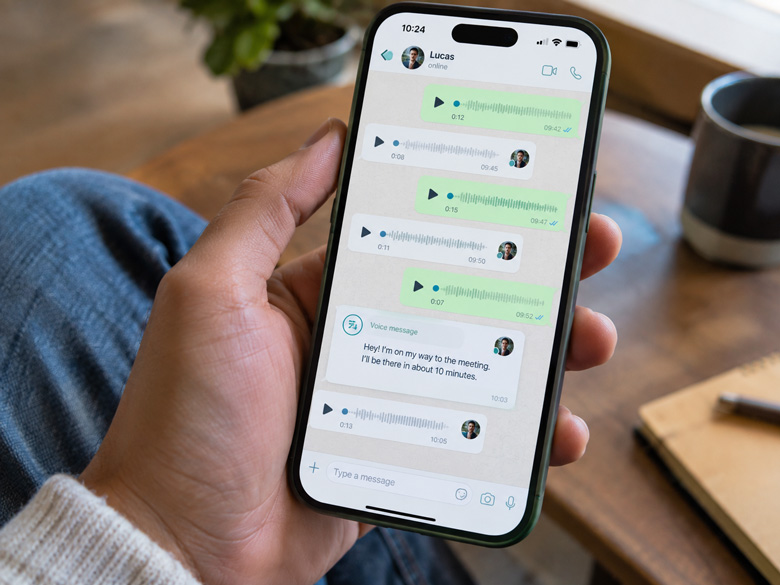
- The transcription appears right below the audio player. You read it without pressing play.
- If the option doesn't appear, check in Settings whether transcription and your preferred language are enabled on your device.
The language pack is downloaded only once. After that, transcription keeps working even without internet, which helps on trips, on the subway, or when the network is bad. This behavior is part of the new features WhatsApp has been stacking up through 2026.
The new transcription languages and what they change
What changed recently is the reach. WhatsApp expanded the language packs used to transcribe voice messages. English, German, French, Italian, and Japanese variants were added, joining languages that already worked, such as Arabic, Spanish, Hindi, Portuguese, and Russian.
In practice, this means fewer people will be left out. The rollout is gradual and happens first in the Android beta, so don't be surprised if the language you use hasn't appeared yet. The new packs usually arrive gradually over a few weeks.
Dictating instead of typing: what's known about the new feature
Now the reverse direction. WhatsApp is developing a dictation feature: you speak and the message is sent as text, without turning into a voice message. The team at WABetaInfo spotted it in an Android beta version, and it isn't available even to testers yet.
Based on what could be seen in the development version, it should work like this:
- A dictation button appears in the chat's typing bar.
- The first time, the app shows a short screen explaining the feature and asks you to choose the language.
- While you speak, a notice appears that the app is listening. When the text is ready, just tap send.
- For the receiver, a regular text message arrives. No one hears your voice, and the app shouldn't mark the message as converted.
Treat all of this as a possibility, not a promise. WhatsApp tests many features that never reach the public, and there's no release date. The good part is that the mechanism should reuse the same local language packs, which would make dictation compatible with end-to-end encryption. It's worth remembering that AI already helps you write in other ways, such as AI-suggested replies.
Your privacy: the audio never leaves your phone
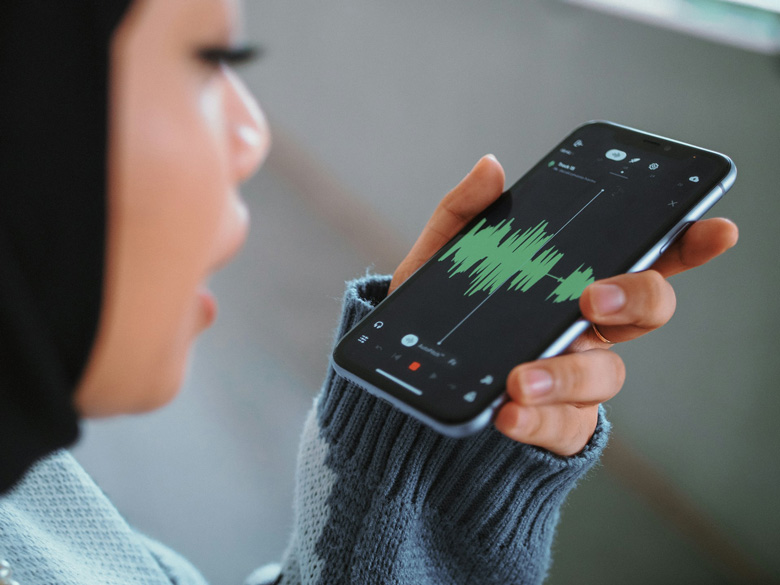
One point that often raises questions is where the audio is processed. According to the feature's technical documentation, transcription uses language packs downloaded on the device itself. In practice, that means the audio doesn't need to be sent to external servers to become text.
This choice has two useful consequences. The first is privacy: the conversation stays protected by end-to-end encryption. The second is availability: because recognition runs locally, transcription works even without internet.
Voice turned into text on the device itself protects the conversation and still works where the network fails.
What you can do today
If your goal is to stop listening to long voice messages, you don't need to wait for anything new: turn on transcription and download the language pack for the languages you receive most. If what you want is to write by speaking, then keep an eye on upcoming updates, without counting on it for tomorrow.
Meanwhile, one habit improves any reply: after turning speech or audio into text, review and format the message before sending. A bolded section already changes how the receiver reads it, and it's the kind of tweak you'll find in the message formatting guide.
Frequently asked questions
How do I transcribe a voice message on WhatsApp?
Tap and hold the voice message, or open its options menu, and choose transcribe. The first time, the app may ask to download the language pack. The text appears right below the player, and you read it without pressing play.
Does audio transcription work without internet?
Yes, once the language pack is downloaded. Recognition runs on the device itself, so transcription keeps working without an active connection.
Does WhatsApp send my audio to a server?
According to the feature's technical documentation, no. Transcriptions use language packs stored locally, and the audio doesn't need to leave the device to become text, which keeps the protection of end-to-end encryption.
Can I dictate messages on WhatsApp yet?
Not yet. The dictate-and-send-as-text feature was found in an Android beta version, but it isn't available even to testers. No release date has been announced.
Will voice dictation roll out to everyone?
Maybe, maybe not. WhatsApp tests many features that end up discarded before launch. So treat dictation as a possibility under study, not a confirmed feature for your device.
Make your messages clearer
Format the text you transcribed or dictated with bold, italic, and strikethrough. Free and with no sign-up.
Open the Formatter