How to enable a passkey on WhatsApp and retire the PIN
2026-09-11 · 7 min de leitura · E. Ribeiro
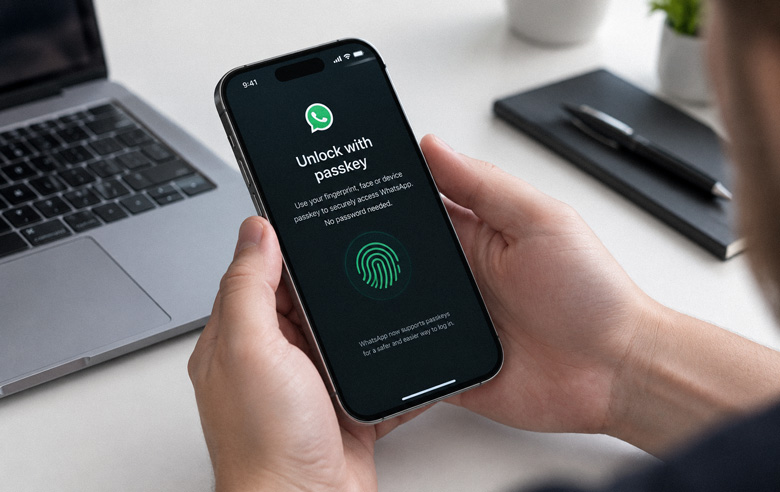
You've probably gotten that message from a friend asking for a quick favor: open a link and vote for something, or confirm a six-digit code that "arrived by mistake" on your device. It looks harmless. But that's how thousands of WhatsApp accounts are stolen every day — and the hole isn't in the code, it's that it can simply be said out loud.
A passkey flips that logic: instead of a secret you type that someone can steal, access is tied to a key stored on your own device.
In August 2026, Meta announced an overhaul of WhatsApp account security. Two-step verification now accepts an alphanumeric password, passkeys can be used on more than one device, and calls from unknown numbers get an origin warning. In this guide, the focus is the step-by-step: how to enable a passkey and what it really protects.
What changed in WhatsApp in August 2026
Meta made the announcement on August 25, 2026, and it bundles three changes that work best together. They target the same thing: making it harder for a criminal to take over your account even if they get hold of some of your data.
- A password instead of a PIN. Two-step verification no longer relies only on the six-digit code and now accepts a full password with letters and numbers.
- More than one passkey. The same account can now have passkeys on different devices, which keeps you from being locked out if a phone is lost.
- Context for unknown numbers. Calls from numbers that are not in your contacts now show their origin, one more signal to distrust strange calls.
According to Meta, passkeys already protect more than 1 billion WhatsApp users — a figure released by the company itself that shows the scale of the change.
For anyone who uses WhatsApp for everything, the news is good, but it deserves a careful read: some of these features arrive gradually, and the exact menu path varies between Android and iPhone. It's normal not to find everything at once.

What a passkey is and why it's stronger than a PIN
A passkey is a way to sign in without a password. Instead of typing a code, the app uses a cryptographic key stored on your device, protected by biometrics, Face ID, Touch ID, or your phone's own unlock. You confirm it's you, and the key does the rest.
The security difference is big because there is nothing for a criminal to intercept. In the classic scam, they talk the victim into reading the six-digit code over the phone and, with that, take over the account. With a passkey, there is no code to read: the key never leaves the device and won't work on another one.
The code scam keeps working because the victim hands over the secret. A passkey closes that door: there is no secret to hand over.
But be careful: no technical protection replaces two basic habits — never share codes and be wary of links and urgent requests.
How to enable a passkey on WhatsApp
The process is quick and similar on Android and iPhone. Before you start, make sure your device has biometrics, a PIN, or a password set up; that's what will authorize the passkey. Then follow these steps:
- Open WhatsApp and tap Settings — the gear icon on iPhone or the three-dot menu on Android.
- Go to Account and look for the Passkeys option. In some languages it appears as "Access keys".
- Tap Create passkey and confirm with biometrics or your device unlock.
- Done. The next time you need to sign in on another device, WhatsApp will ask for the passkey instead of the SMS code.
The exact name of the item and the number of confirmations may vary depending on the app version and the manufacturer. If the option hasn't appeared for you yet, it's probably because the rollout is happening in waves — it's worth trying again in the coming days.
What a passkey solves (and what still depends on you)
It's important not to sell passkeys as complete armor. They're very effective at what they set out to do — stopping someone from entering your account with just a code — but the weakest link is still social engineering.
In practice, a passkey protects against:
- Theft of the verification code by phone, SMS, or call.
- Phishing that mimics the login screen to capture the code.
- Unauthorized access to your account even if your data leaks from another service.
What it doesn't solve: scams where you yourself are convinced to click a fake link or share data, and access to WhatsApp Web when someone is already logged in on your computer. For that side, human care remains irreplaceable — and it's worth recognizing the pattern in the vote link scam, which steals accounts with a seemingly mundane conversation.
In short: a passkey closes the login door. Closing the other doors still depends on you.
And the 6-digit PIN, is it retired for good?
Not for everyone yet. The change is an ongoing migration, not a switch: the alphanumeric password and the passkey coexist with the PIN while Meta expands the feature. If two-step verification on your account still uses the six-digit code, that doesn't mean it became insecure — it just means the update hasn't reached you yet.
The recommendation is simple: enable the passkey as soon as it appears and, if you have the option to swap the PIN for a stronger password, make the switch. If you'd rather review the rest first, the complete WhatsApp security guide shows what's worth turning on and why.
Frequently asked questions
What is a passkey on WhatsApp?
It's a way to sign in without a password. WhatsApp stores a cryptographic key on your device, and you confirm your identity with biometrics or your phone unlock. There is no code to type or share.
Is a passkey more secure than a 6-digit PIN?
Yes, for the most common type of scam. The PIN can be obtained through social engineering or phishing; a passkey never leaves the device and won't work on another one, so there is nothing to steal over the phone.
Can I have more than one passkey on the same account?
Yes. One of the August 2026 updates is precisely support for multiple passkeys, useful if you use more than one phone or want a backup in case you lose your main device.
What happens if I lose my phone?
A passkey is tied to the device and the password manager, such as iCloud or Google. If you lose your phone, recover access through the manager or another device that already has a passkey set up. That's why having more than one is a good idea.
Do I need to set anything up before creating a passkey?
Yes. The device needs biometrics, Face ID, Touch ID, a PIN, or a password set up, because that's what authorizes the key. It's also worth keeping a recovery email or phone number up to date on your account.
Enable a passkey and retire the 6-digit code
Open WhatsApp, go to Settings, Account, and Passkeys, then confirm with biometrics. It takes just a few minutes to close the door scammers exploit most.
See the account security guide