WhatsApp drops old Android, how to save your chats
2026-09-12 · 7 min de leitura · E. Ribeiro

If your phone has been around for a few years, it's worth a quick check: since September 8, 2026, WhatsApp no longer supports Android 5.0 and 5.1. In practice, anyone stuck on those versions has lost the app — and, with it, the gateway to years of conversations that live there.
The good news is that you can sort this out without drama: check the system version, make sure you have a backup, and, if needed, transfer your account to another device without losing the history. This guide walks you through it in three steps, including for anyone helping a family member make the switch.
What changed on September 8, 2026
The warning had been out since April, but the date is now in force: WhatsApp requires Android 6.0 (Marshmallow, from 2015) or newer. Anyone using Android 5.0 or 5.1 (Lollipop, from 2014) is off the list of compatible devices.
- Old versions are out. Android 5.0 and 5.1 are no longer supported; the new minimum is Android 6.0.
- It applies to both apps. The change affects regular WhatsApp and WhatsApp Business, which share the same code base.
- It's not about the model, it's about the system. The same phone may have received Android 6 in one country and stopped at 5 in another — what counts is the version installed on your device.
According to specialist tech press, the regions with the most devices in this situation include India, Brazil, Pakistan, Southeast Asia, and Africa, where many simpler models never received a manufacturer update. There is no official list of affected brands for exactly that reason: Meta states which system version the app is compatible with, not which models will keep working.
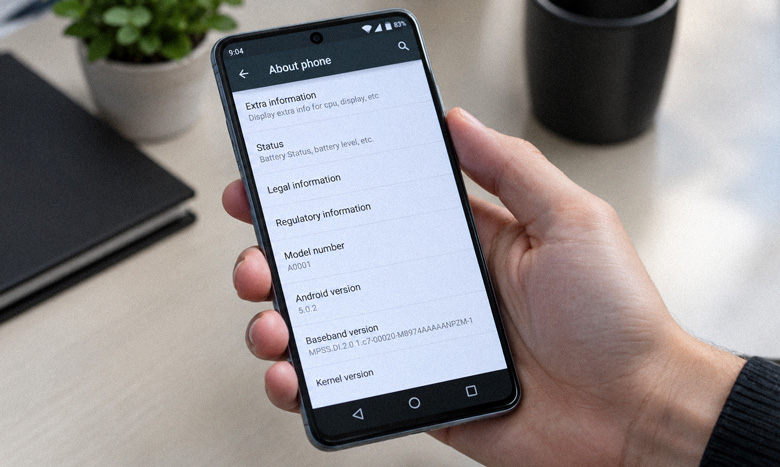
How to tell if your phone was affected
The check takes less than a minute and avoids an unpleasant surprise at the wrong time. The path can vary a little from one manufacturer to another, but on Android it's usually this:
- Open your phone's Settings.
- Go to About phone (on some devices it appears as "About device").
- Tap Software information, if that option exists.
- Look at the number under Android version.
If the number is 6.0 or higher, you're all set: your WhatsApp keeps working with no change. If it's 5.0 or 5.1, look for the software update option on the same screen and check whether a newer version is available for your device.
If Android won't update, what are the options
Here it's worth being honest: when the manufacturer doesn't offer an update, there's no trick that turns Android 5 into Android 6. Installing an unofficial version of the system is risky, often fails, and opens security holes — not a path anyone should recommend.
The end of support also doesn't mean the app stops working at the exact second it flips. In practice, it stops receiving updates and fixes and may keep opening for a while, until it starts to fail as WhatsApp changes underneath. Using it that way is neither safe nor reliable for anyone who depends on the app for work.
There are two realistic options: update the system when possible, or transfer the account to a compatible device. If the old phone is still useful for other things, it can stay in use — just don't count on it for WhatsApp.
The phone doesn't become useless: what leaves the scene is access to WhatsApp. That's why the most important step is making sure you have a backup before any switch.
How to switch phones without losing chats
The golden rule is simple: your history only reappears on the new device if there's a backup and you sign in with the same phone number. WhatsApp keeps copies on Google Drive (Android) or in the device's own storage, depending on how the account is set up.
- On the old phone, open WhatsApp and go to Settings, then Chats and Chat backup.
- Tap Back up now and wait for it to finish, with the phone connected to Wi-Fi.
- Confirm that the Google account used for the backup is the same one you'll use on the new device.
- On the new phone, install WhatsApp, enter the same number, and accept the restore when it asks.
If the messages don't show up right away, don't panic: sometimes the restore needs a second attempt or a more recent backup. The guide on recovering deleted WhatsApp messages covers the cases where history disappears and helps you understand what can and cannot be brought back.
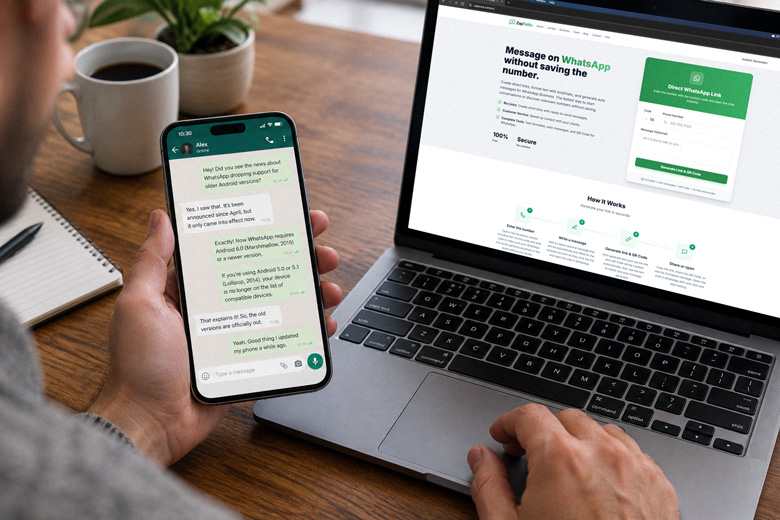
How to stay reachable on the new device
Once the migration is done, a practical concern shows up: can people still reach you? If many of them only had your contact saved on the old phone, an elegant solution is to share a WhatsApp direct link — the address that opens the chat with a ready-made message. Whoever receives it doesn't have to save any number.
For businesses this is even more useful: a shop that took orders on an old phone can share the link on Instagram or a business card and keep receiving orders on the new device. Anyone who wants to understand the format inside out will find the step-by-step in the wa.me link guide, and for those who prefer something visual, a WhatsApp QR Code does the same job on a poster or a screen.
If you got here in the middle of a phone switch, keep two shortcuts from the ecosystem: a direct link so people can message you without saving a number, and a QR Code to turn your contact into a single tap. It's a simple way to avoid gaps in communication while the new device settles in.
And the iPhone, when does it enter?
The cutoff isn't exclusive to Android. According to WhatsApp, starting November 30, 2026, iPhone will require iOS 15.5 or newer. Anyone with an older iPhone still has a few months to get organized, but the script is the same: check the version, make sure you have a backup, and plan the switch before the date.
Frequently asked questions
Will WhatsApp stop working on my phone?
Only if your device is on Android 5.0 or 5.1, which stopped being supported on September 8, 2026. If it runs Android 6.0 or newer, the app keeps working normally, with no action needed.
How do I check my phone's Android version?
Open Settings, go to About phone (or About device), and look for Software information, if that option exists. The version appears as "Android version". The path can vary a little depending on the manufacturer.
Will WhatsApp Business also stop working?
Yes. The compatibility change applies to both regular WhatsApp and WhatsApp Business, because the two apps share the same code base. Businesses that take orders on an old phone follow the same backup and migration steps.
Will I lose my chats when I switch phones?
No, as long as there's a backup and you sign in on the new device with the same number. Back up manually before the switch and confirm that the Google account used for the file is the same one on the new device. Without a backup, the history has nowhere to be restored from.
When does the older iPhone lose WhatsApp support?
Starting November 30, 2026, WhatsApp requires iOS 15.5 or higher. Until then, iPhones on older versions keep working, but it's worth using the time to check the version and prepare a backup.
Generate a QR Code for your WhatsApp
After moving to a new device, make life easier for anyone who needs to reach you. Create a QR Code with your number and a ready-made message, free and with no sign-up.
Generate free QR Code