WhatsApp now lets you schedule events in chats
2026-09-19 · 6 min de leitura · E. Ribeiro

Have you ever tried to set up a lunch, a meeting or a trip in a group chat and watched the plan fall apart? The conversation fills up, someone replies about something else, and when the day comes nobody remembers the time. It is rarely about people being disorganised: the invitation simply dissolves among the messages.
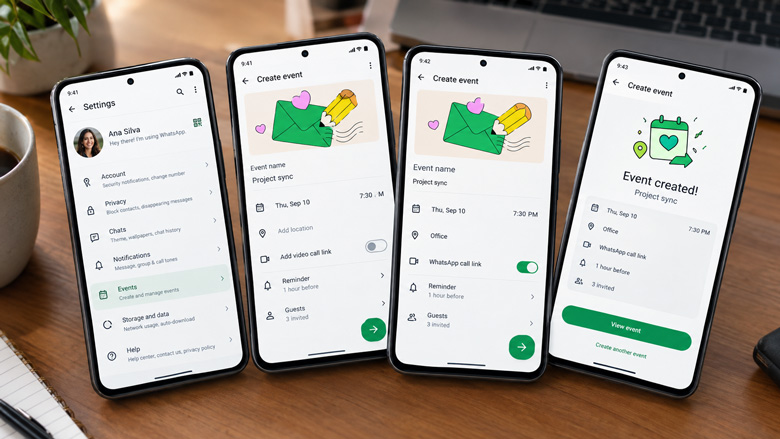
WhatsApp noticed. The app already has an events feature, and it is now testing a dedicated area to gather your commitments in one place. In the next few lines you will see what you can do today, the step-by-step to create an event, and what changes when the new tab reaches your phone.
What you can do with WhatsApp events today
Events are not entirely new. The feature started in Community groups and was extended to individual chats and regular groups. In practice, an event is a card with a title, date, time, location and description — attached to the conversation instead of buried in a message that scrolls away.
Participants can reopen the details at any time, and WhatsApp sends reminders before the commitment. It is a quiet but important difference: instead of hunting for “that time” in the history, the plan stays in a fixed place — and the “I did not see the message” excuse runs out. If you want the wider picture of this year’s changes, compare it with the WhatsApp changes of 2026.
How to create an event in a chat or a group
The path is the same in an individual chat or a group. The difference is that, in a group, the event is visible to every participant.
- Open the chat or group where the commitment will happen.
- Tap the attachment icon — the paperclip on Android, or the “+” on iPhone — to open the options.
- Choose Event. If the option does not appear, update the app from your phone’s store: the feature rolls out gradually.
- Fill in title, date and time and, if you want, location and description. A short, clear title beats a long text.
- Confirm and send the invitation to the chat.
Once created, the event stays attached to the conversation. Whoever created it can edit the details or cancel, and participants get a notice of the change. Take care with the description: that is where the address, what to bring and any detail that usually gets lost should go. To make that information stand out, the message formatting guide shows how to use bold and lists.
What guests see and how to invite people without WhatsApp
Anyone who receives the invitation sees a card with the name, date and time and can tap it to open the details. According to reports about the feature under test, it will also be possible to invite people who do not have a WhatsApp account through an external link: when they open the address, they see the event name, date and time, even without the app installed.
The win is not having one more feature. It is ending the invitation that gets lost among fifty messages.
The new events tab Meta is testing
In September 2026, WhatsApp began testing an Events section in the Android settings menu. The idea is simple: instead of opening chat after chat to remember a commitment, you see every event you created and every invitation you received on a single screen, and you can create new ones right there.
One caveat: the feature was spotted in a beta build and Meta has not announced a global release date. It may reach testers first and vary by device. The feature that already works in chats, however, solves most of the problem right now. And if you use WhatsApp for work, the same logic applies to deadlines and meetings: see how to organise clients and commitments on WhatsApp.
A well-set event is not the one that shouts the loudest. It is the one nobody has to look for.
Tips so the event does not get lost in the group
- Use a direct title. “Parents’ meeting, Thursday, 7 pm” works better than “About the meeting”.
- Fill in the location. An address or call link in the description saves twenty questions later.
- Create it in advance. A reminder only helps if people have time to organise themselves.
- Confirm attendance in the chat. The event stores the details; confirmations still happen in the conversation.
- Send a reminder on the day. A short message cuts last-minute forgetfulness.
For bigger events — a party, a tournament or a large group organising around the World Cup — it is worth setting up a separate conversation just for the plans. One example is what we show in how to organise a group for the 2026 World Cup.
Frequently asked questions
How do I create an event on WhatsApp?
Open the chat or group, tap the attachment icon, choose Event, fill in title, date and time and confirm. The option may not appear in older versions of the app; in that case, update it from your phone’s store.
Where are events stored on WhatsApp?
Today the event stays attached to the chat where it was created, and you can reopen it from the card in the conversation. WhatsApp is testing an Events tab in settings that will bring together every event created and invitation received on a single screen.
Can I invite people without WhatsApp to an event?
According to reports about the feature under test, yes: through an external link that shows the name, date and time and can be opened in a browser, no app required.
Do WhatsApp events send reminders?
Yes. Events generate reminders for participants before the commitment, which helps reduce forgetfulness and the need to repeat the plan in the group.
Do WhatsApp events replace the phone calendar?
Not necessarily. A WhatsApp event serves the plan that begins in the conversation and the people taking part in it. For your personal routine, the phone calendar still makes sense — the two can coexist without conflict.
Do not let the plan get lost
Create your event confirmation or reminder message in seconds, with AI, no sign-up. Free.
Generate Automatic Message