How to Make Voice and Video Calls on WhatsApp Web
2026-08-27 · 7 min de leitura · E. Ribeiro

If you work with your computer open and your phone nearby, you've been there: the call rings on your phone, you drop everything to answer, and you come back to your screen with the conversation scattered across two places. Since the end of July 2026, this routine has an official fix: WhatsApp Web now makes voice and video calls straight from your browser.
The feature had been requested for years and arrived alongside additions many people still haven't heard of — call transfer between devices and a waiting room. In this guide, you'll discover how to enable it, what actually works, what's still missing, and how to use it without giving up your privacy.
Why WhatsApp Web Calls Changed the Routine of Anyone Who Works on a PC
Before, WhatsApp Web was for messages, files, and stickers. Calls were exclusive territory of the phone — and that created a constant back-and-forth between your keyboard and your phone's screen. Answering an important call in the middle of a spreadsheet meant dropping everything to hold the device.
With calls on Web, the entire conversation stays where the work happens. You use your computer's microphone and camera, see the contact on a bigger screen, and can even keep typing while you talk. For anyone who handles customers or joins quick meetings, the difference is immediate. WhatsApp Web finally makes voice and video calls — and the whole conversation now lives on the computer, where the work already happens.
If you don't use WhatsApp Web yet, the first step is to link it: see how to connect WhatsApp Web using the QR Code on your phone — it's the foundation for everything that comes next. Complete guide to WhatsApp Web on your computer →
How to Make Voice and Video Calls on WhatsApp Web
You don't need to install anything. Calls use the same WhatsApp Web connection: your phone stays paired via QR Code, and the audio and video come out through your computer. The only thing that changes is the permission the browser asks for on your first call.
- Open WhatsApp Web in your browser and confirm that your phone is connected via QR Code.
- Choose the contact and use the phone (voice) or camera (video) icons at the top of the conversation.
- Accept the permissions: the first time, the browser asks whether the site can use your computer's microphone and camera.
- Check the audio: if there's no sound, verify that your computer is using the right microphone and speaker in your system settings.
Chrome is the browser most often mentioned in tests, but the feature is being rolled out gradually. If you don't see the call icons yet, it's not a bug: the feature can take days or weeks to reach your account, depending on the app version and your region.
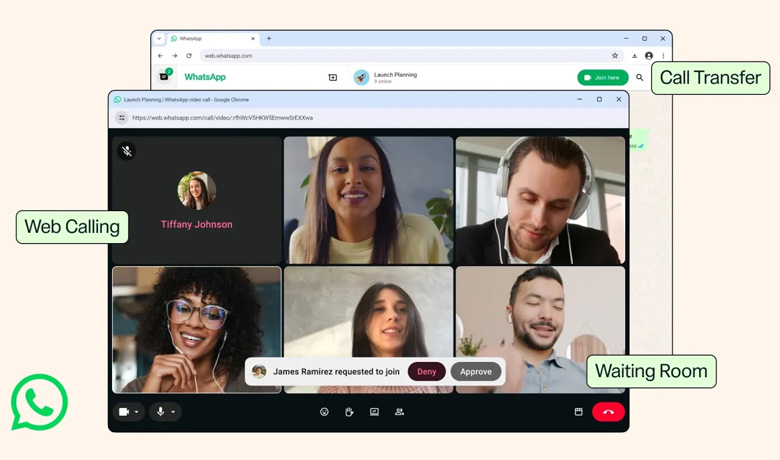
Call Transfer and Waiting Room: The New Features
Calls on Web arrived with two features that didn't exist even in the app before. Call transfer lets you move an ongoing call from your phone to your computer — or the other way around — without hanging up. Handy when you need to leave your desk mid-conversation or get back to your keyboard.
The waiting room, in turn, lets you know when another call is trying to get through while you're talking, and lets you decide whether to answer, decline, or stay on the current call. No more accidentally dropped calls. Both features have appeared in guides and reports from several countries since the launch — the exact button layout may vary depending on the version.
What's Still Missing on WhatsApp Web (Honest Limits)
Not everything available on the phone works on Web yet. Group calls, for example, are still expanding: there are reports of users getting group video working in the browser, with screen sharing — but Meta hasn't announced a general rollout, and the participant limit varies from test to test. WhatsApp Web still isn't a complete replica of the app — but for one-on-one calls, it already covers the essentials.
Features like call recording and some video settings remain exclusive to the app. And remember: Web depends on a paired phone — if your phone runs out of battery or loses its connection, calls on the computer stop too. Meanwhile, anyone who lives on the keyboard can take advantage of WhatsApp Web shortcuts to speed up their day. WhatsApp Web shortcuts and tips →
Are Calls on Web Safe? What Privacy Has to Do with It
Voice and video calls on WhatsApp Web use the same end-to-end encryption as the app: the content can't be read by Meta or by third parties along the way. On that point, Web is no more fragile than your phone. The encryption doesn't change between your phone and your computer — what changes is the environment around you.
On your phone, the call goes with you; on the computer, it happens where you are — and whoever is nearby can hear it. Shared screens, meeting recorders, and even an enabled speaker can expose what you'd rather keep private. Treat work calls on Web like office conversations: careful about what stays visible and audible.
If your concern is what other people see on your account, it's worth reviewing your WhatsApp privacy settings — last seen, read receipts, and who can call you. 7 privacy settings you ignore →
Got a Call from an Unknown Number? What to Do
Calls on Web also mean missed calls from numbers you don't recognize — and calling back without knowing who it is can be an invitation for scams. Before calling back, the safest path is to identify where the number comes from.
Don't call back right away. Find out who might own that number, and if there's any suspicion, treat the conversation the way you would a strange message: be wary of urgent requests and of anyone asking for personal information. 4 ways to find out who called you on WhatsApp →
Calling from your computer is convenient. The security, however, is still yours.
Frequently Asked Questions
How do I make a video call on WhatsApp Web?
Open a conversation on WhatsApp Web with your phone paired and click the camera icon at the top of the conversation. The first time, the browser asks permission to use your computer's camera and microphone — accept it and the call starts.
Does WhatsApp Web need an app to make calls?
No. Calls work right in the browser, with your phone paired via QR Code. The browser uses your computer's microphone and camera, with your permission — no extra program is needed.
Are WhatsApp Web calls safe?
Yes. Voice and video calls on Web use end-to-end encryption, just like the ones in the app. The extra care is up to your environment: avoid taking sensitive conversations with other people nearby or with shared screens.
How do I transfer a call from my phone to my computer?
With call transfer, available alongside calls on Web, you move an ongoing call from your phone to your computer — or the other way around — without hanging up. The button appears on the call screen; the exact layout varies depending on the app version.
Can I make group calls on WhatsApp Web?
Group calls are still expanding on Web: there are reports of users with group video and screen sharing, but Meta hasn't announced a general rollout. For most accounts, the safe path for now is to use one-on-one calls in the browser and leave bigger meetings to the app.
Identify Who Called Before Calling Back
Find out where unknown WhatsApp numbers come from without saving the contact. Free, no sign-up required.
Identify Number